
Why Is My Autodesk Vault Running Slow?
Vault Should Be Fast
Let's start with a simple truth: Autodesk Vault is fast — or at least, it should be.
In a properly configured environment, even large datasets perform well. If you're working with Autodesk Vault alongside Autodesk Inventor, opening a 5,000-part assembly should not introduce significant delays. Files should open quickly, check-ins and check-outs should be responsive, and general navigation should feel smooth.
If that's not your experience, then something in your environment is introducing friction — and in most cases, it comes down to a few common architectural considerations.
Step 1: Identify What Is Slow
Before diving into fixes, the most important step is to understand where the slowness is occurring.
Test the Vault Experience
Use the Vault client and ask:
-
Is navigation fast?
- Clicking folders
- Browsing file lists
- Searching
-
Or is file access slow?
- Opening files
- Checking out files
- Downloading assemblies
What This Tells You
If navigation is fast, but opening files is slow:
-
The database is likely fine
-
The issue is usually:
- Network latency
- Antivirus scanning
- File transfer bottlenecks
If navigation itself is slow:
-
The issue is likely:
- Database performance
- Under-resourced SQL Server (RAM/CPU)
- Poor indexing or maintenance
This distinction is critical — it tells you exactly where to focus.
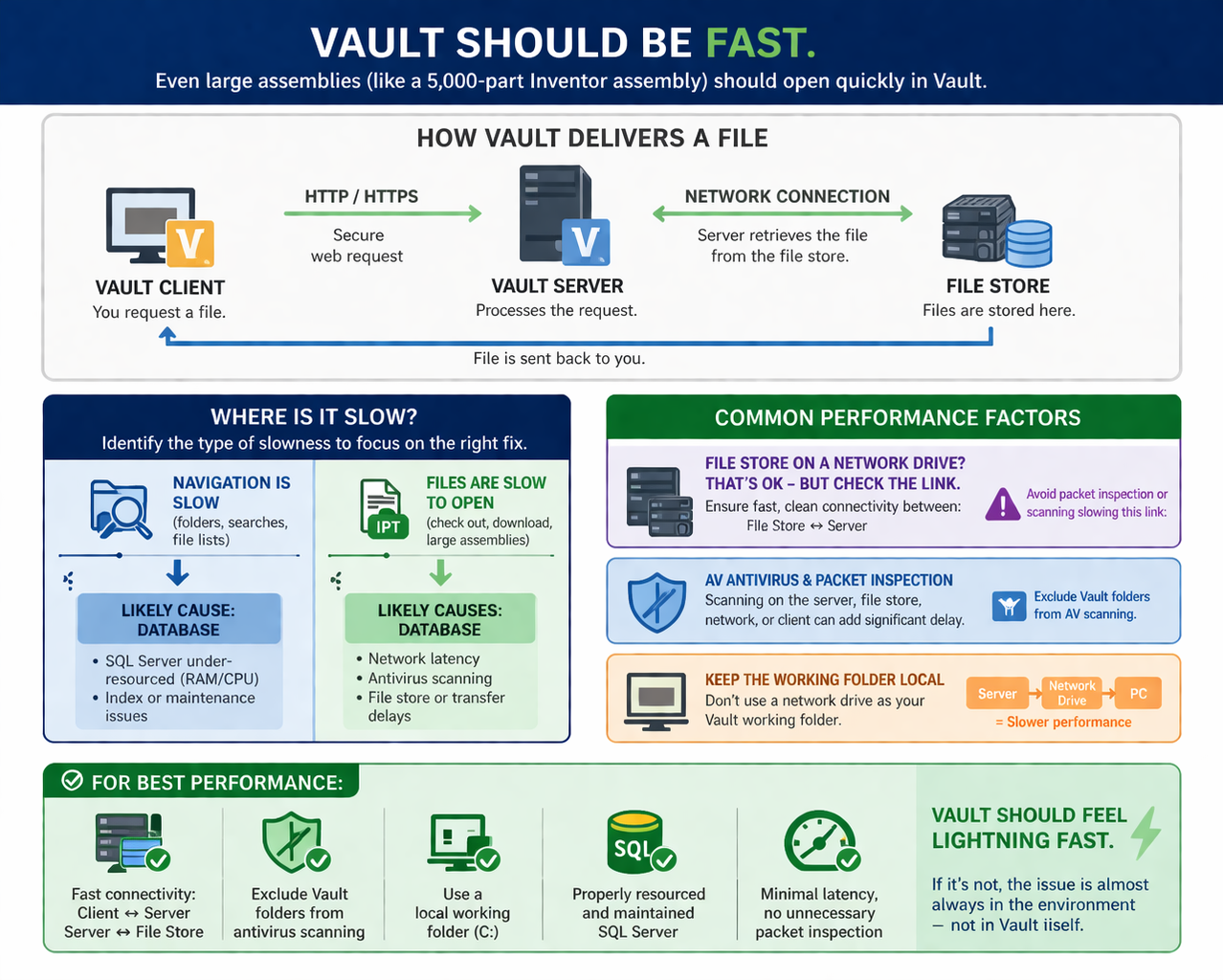
Step 2: Understand How Vault Delivers Files
At a high level:
- Files live in the Vault file store
- The client requests a file
- The server retrieves it and sends it over HTTP/HTTPS
Every delay you experience happens somewhere along this path.
1. File Store Considerations
File Store Location (Local vs Network)
It is completely normal — and often recommended — for the Vault file store to be located on external or network-attached storage.
However, this introduces an additional hop:
- File Store → Vault Server
- Vault Server → Client
Each hop can introduce latency.
Key risk:
- If there is packet inspection, antivirus scanning, or slow I/O between the file store and server and again between server and client, you effectively double the delay.
Takeaway:
- Network file stores are fine
- But you must ensure fast, clean connectivity between file store and Vault server
Antivirus Scanning on the Server
A very common issue is real-time scanning of the file store.
What happens:
- File is requested
- Antivirus scans it before release
- Vault waits → user sees delay
Recommendation:
- Exclude Vault file store directories from antivirus scanning
- Exclude Vault services and processes where appropriate
2. Network Performance
Latency Matters More Than You Think
Vault relies on standard web traffic (HTTP/HTTPS), so:
- High latency = slower file access
- Packet inspection = added delays
Even if bandwidth is high, latency can still hurt performance.
The Double Inspection Problem
A common but hidden issue:
- Traffic is inspected between file store → server
- Then inspected again between server → client
This creates compounding delays, especially noticeable with large assemblies.
What to Check
-
Ping times between:
- Client ↔ Server
- Server ↔ File Store
-
Firewall and security appliance behaviour
-
VPN or cloud routing impacts
3. Client-Side Considerations
Antivirus on the Client
When files are downloaded locally:
- Antivirus may scan every file
- This adds delay before the file is usable
Recommendation:
- Exclude the Vault working folder from antivirus scanning
Working Folder Must Be Local
If your working folder is set to a network drive, you introduce unnecessary overhead:
- Download from Vault server
- Write to network location
- Read back across the network
This significantly impacts performance — especially for large assemblies.
Best practice:
- Always use a local working folder (C:)
4. Database Performance (Navigation Issues)
If Vault feels slow to navigate, this points to the database layer.
Common causes:
- SQL Server under-resourced (especially RAM)
- Poor maintenance (index fragmentation, outdated stats)
- High load from other systems
Symptoms:
- Slow folder browsing
- Delayed search results
- UI feels sluggish even before opening files
Putting It All Together
Vault performance issues are almost always environmental, not application-related.
A well-performing Vault environment:
-
Fast connectivity:
- Client ↔ Server
- Server ↔ File Store
-
Minimal or no scanning on:
- File store
- Network traffic
- Client working folder
-
Local working directory on user machines
-
Properly resourced SQL Server
Final Thought
Vault is designed to make working with large datasets feel local and seamless.
If navigation is fast but file access is slow — look at network and scanning. If navigation itself is slow — look at the database.
Once you isolate where the delay is happening, the fix becomes much clearer.